> ## Documentation Index
> Fetch the complete documentation index at: https://guide.smore.im/llms.txt
> Use this file to discover all available pages before exploring further.
# 질문별 인사이트
> 질문별 인사이트는 각각의 응답을 시각화해서 한 눈에 파악할 수 있게 도와주는 기능입니다. 다중선택부터 시간, 날짜 입력 카드까지 모든 질문 유형에 대한 응답을 지원해요.
 ## 📊 보기 유형
### **파이 차트 유형**
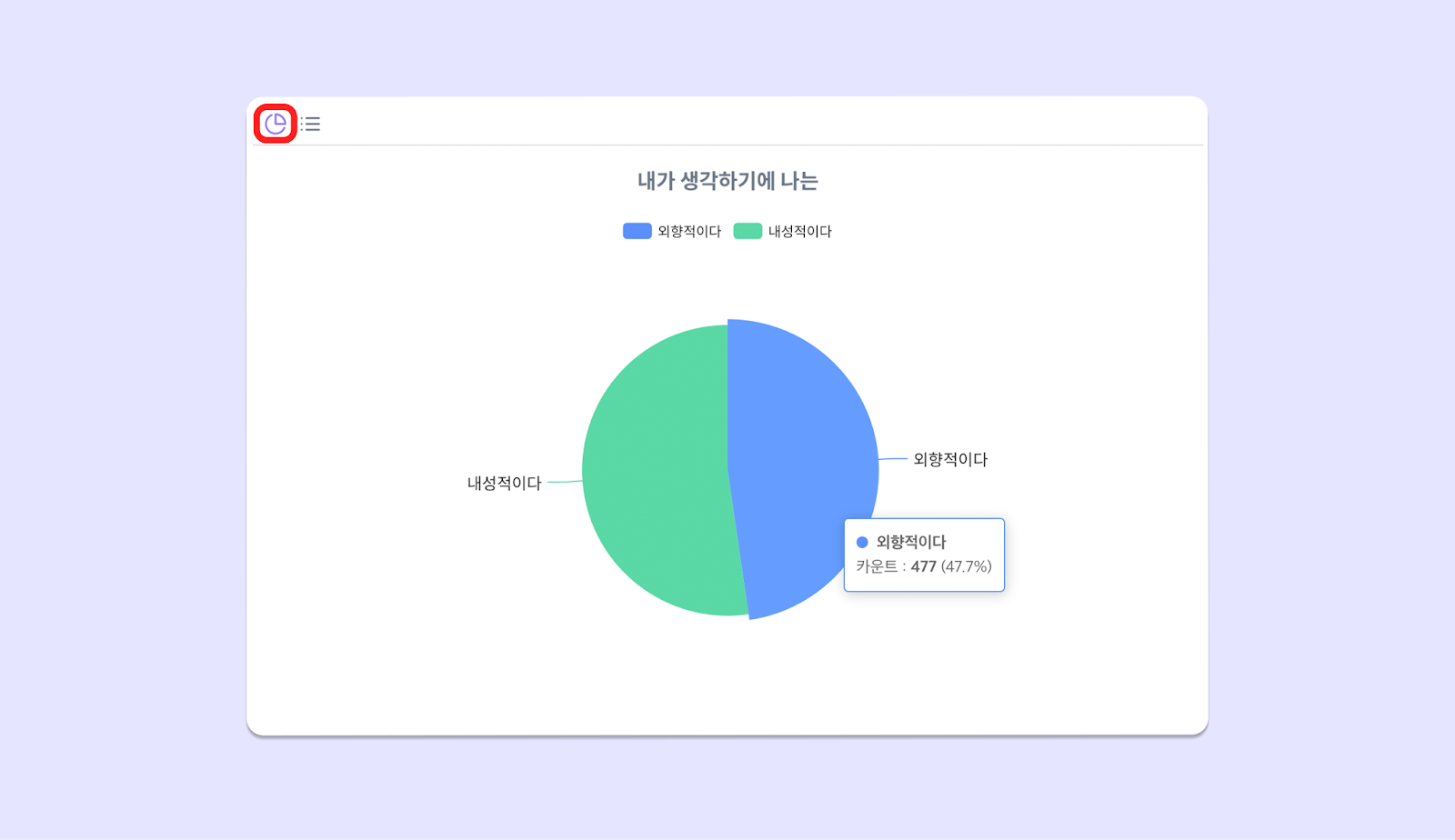
텍스트 선택 문제 유형은 한 눈에 응답 비중을 살필 수 있는 파이 차트 유형으로 제공 되어요. 각 파이 위에 마우스를 올려 두면 카운트와 비율(%)을 확인할 수 있습니다.
## 📊 보기 유형
### **파이 차트 유형**
텍스트 선택 문제 유형은 한 눈에 응답 비중을 살필 수 있는 파이 차트 유형으로 제공 되어요. 각 파이 위에 마우스를 올려 두면 카운트와 비율(%)을 확인할 수 있습니다.
 ### **리스트 유형**
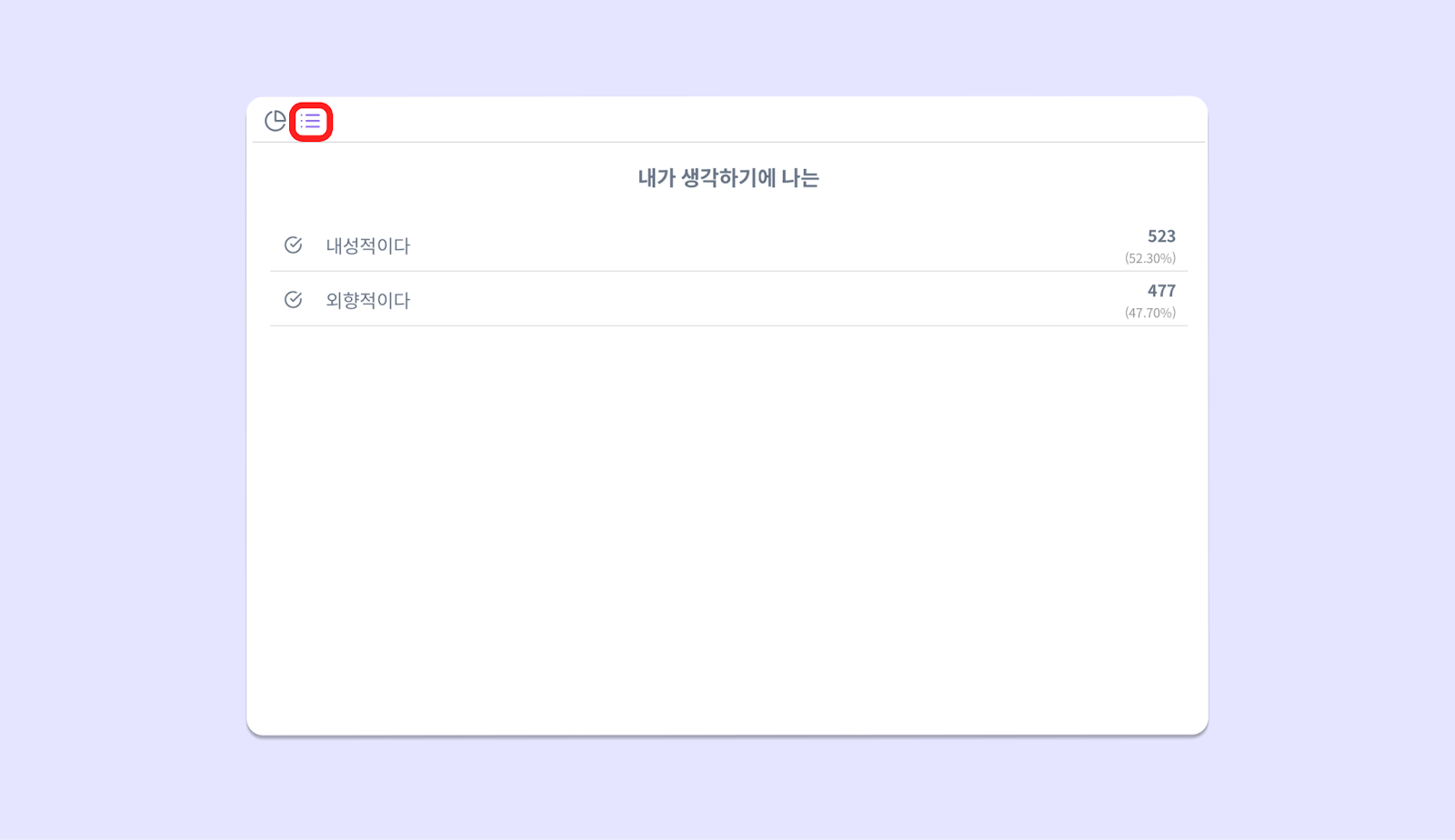
문제 좌측 상단의 두 번째 버튼을 클릭하여, 리스트 형태로도 응답을 확인할 수 있습니다.
### **리스트 유형**
문제 좌측 상단의 두 번째 버튼을 클릭하여, 리스트 형태로도 응답을 확인할 수 있습니다.
 ### **그 외 유형**
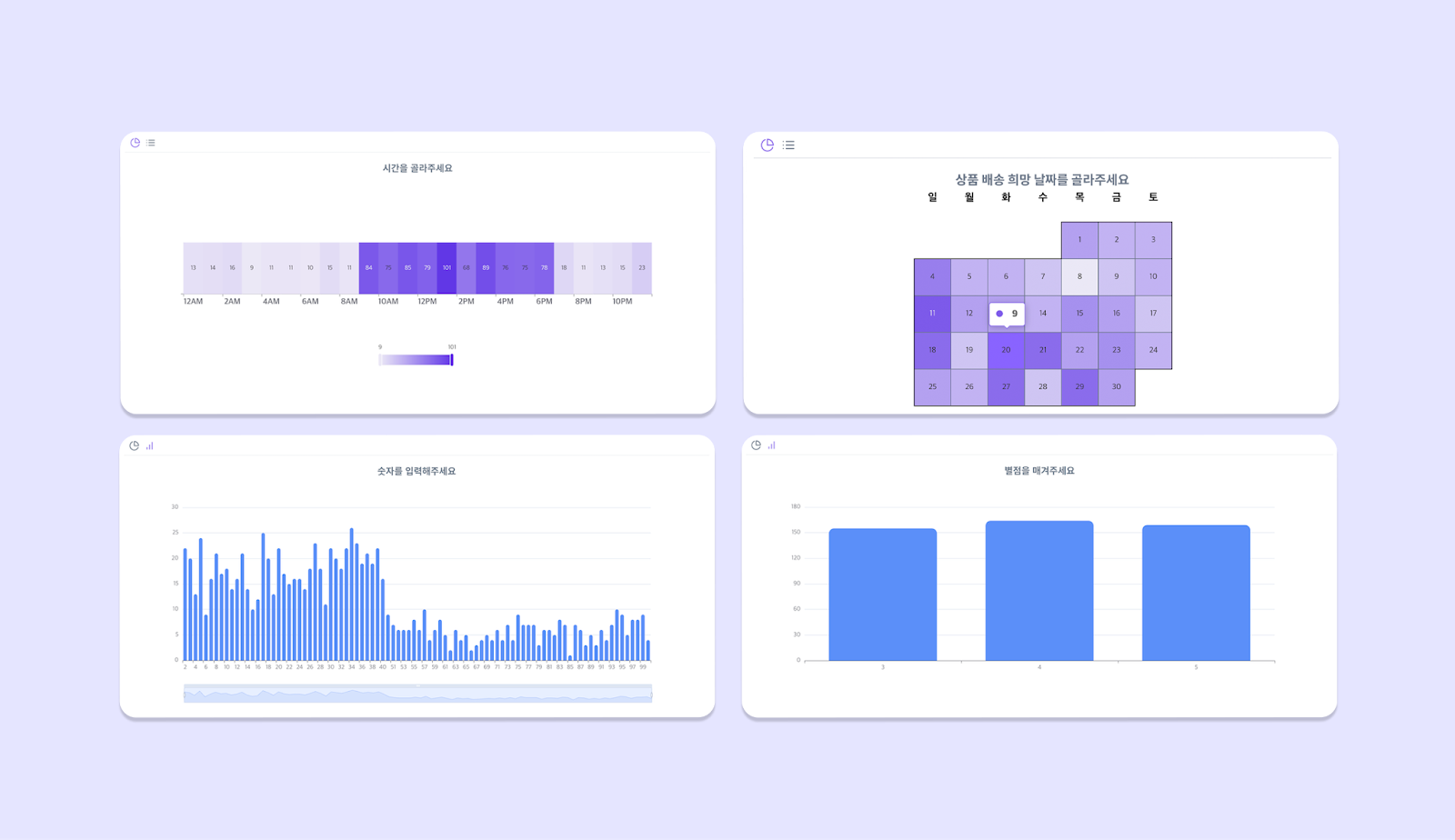
숫자 입력, 날짜 입력, 시간 입력, 별점 등의 유형은 각각의 데이터를 가장 잘 시각화한 형태로 제공됩니다.
### **그 외 유형**
숫자 입력, 날짜 입력, 시간 입력, 별점 등의 유형은 각각의 데이터를 가장 잘 시각화한 형태로 제공됩니다.
## 🔄️ 질문별 인사이트 문항 순서 변경
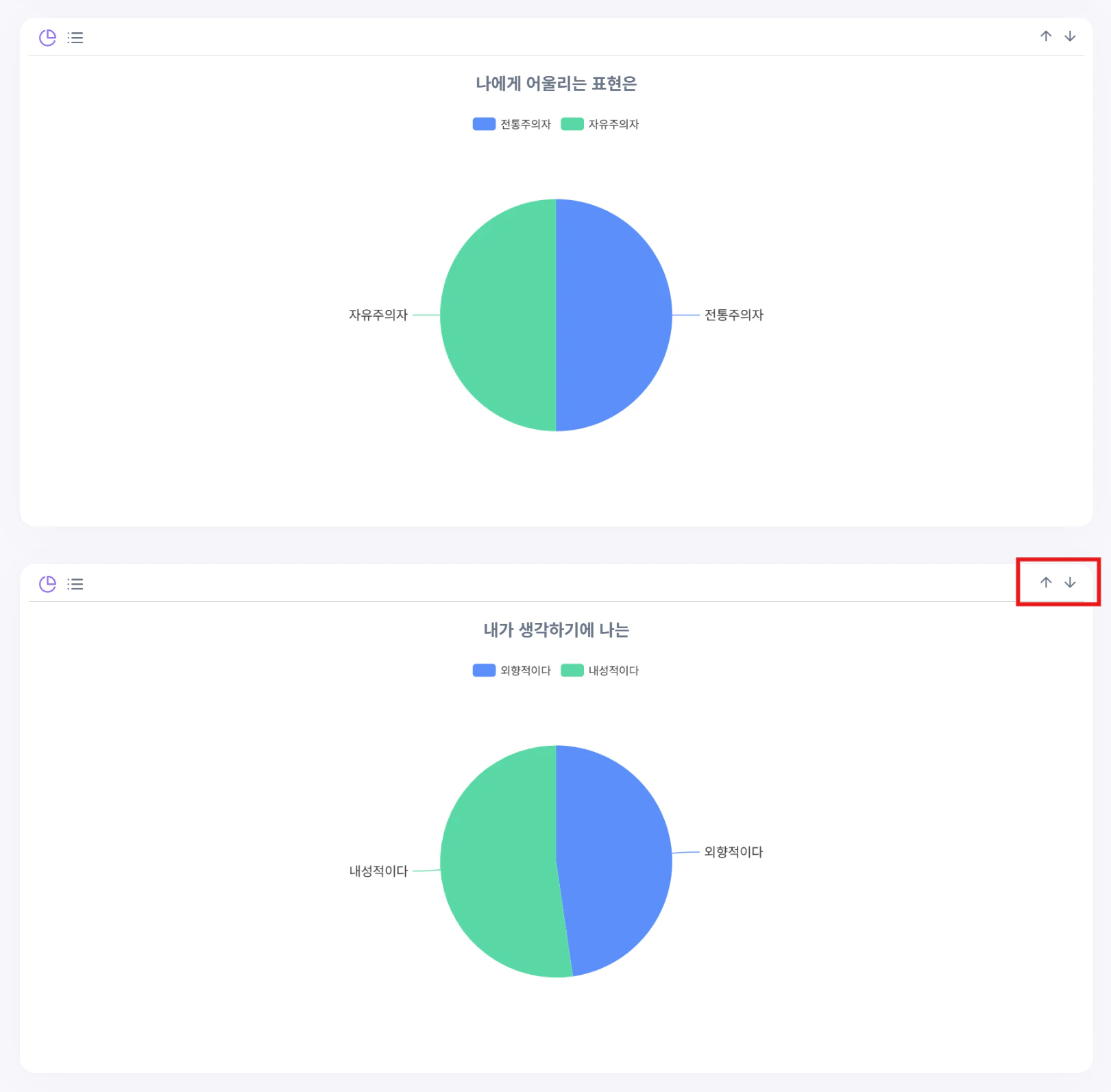
질문별 인사이트에서 원하는 문항 순서대로 자유롭게 재정렬해 조회할 수 있어요.
한 번 문항 순서를 재정렬하면, 브라우저를 변경하거나 초기화하지 않는 이상 해당 순서 설정이 계속 유지돼요.
 **실제 응답 및 분석 화면이 궁금하다면? 👉** [**샘플 데이터 보러가기**](https://smore.im/analytics/__SAMPLE__)