> ## Documentation Index
> Fetch the complete documentation index at: https://guide.smore.im/llms.txt
> Use this file to discover all available pages before exploring further.

# 응답 및 분석 확인 방법

> 콘텐츠 배포가 완료됐다면, 고객들이 남겨주신 소중한 응답을 확인할 차례입니다! 스모어가 제공하는 ‘응답 및 분석’을 통해 고객의 진심을 꼼꼼히 파악해 보세요.

<img className="rounded-2xl" src="https://mintcdn.com/dodamind-705e6e3b/wQXKXg1OAEhnRJD2/analytics/images/thumb-1.jpg?fit=max&auto=format&n=wQXKXg1OAEhnRJD2&q=85&s=419f71e1c6e5545ab4c13e7eb2b210b7" alt="image_1" width="2083" height="833" data-path="analytics/images/thumb-1.jpg" />

## 확인 방법

다음 세 가지 방법을 통해 ‘응답 및 분석’ 을 확인할 수 있어요!

* **콘텐츠 편집 화면 우측 상단**의 ‘응답 및 분석’ 아이콘 클릭
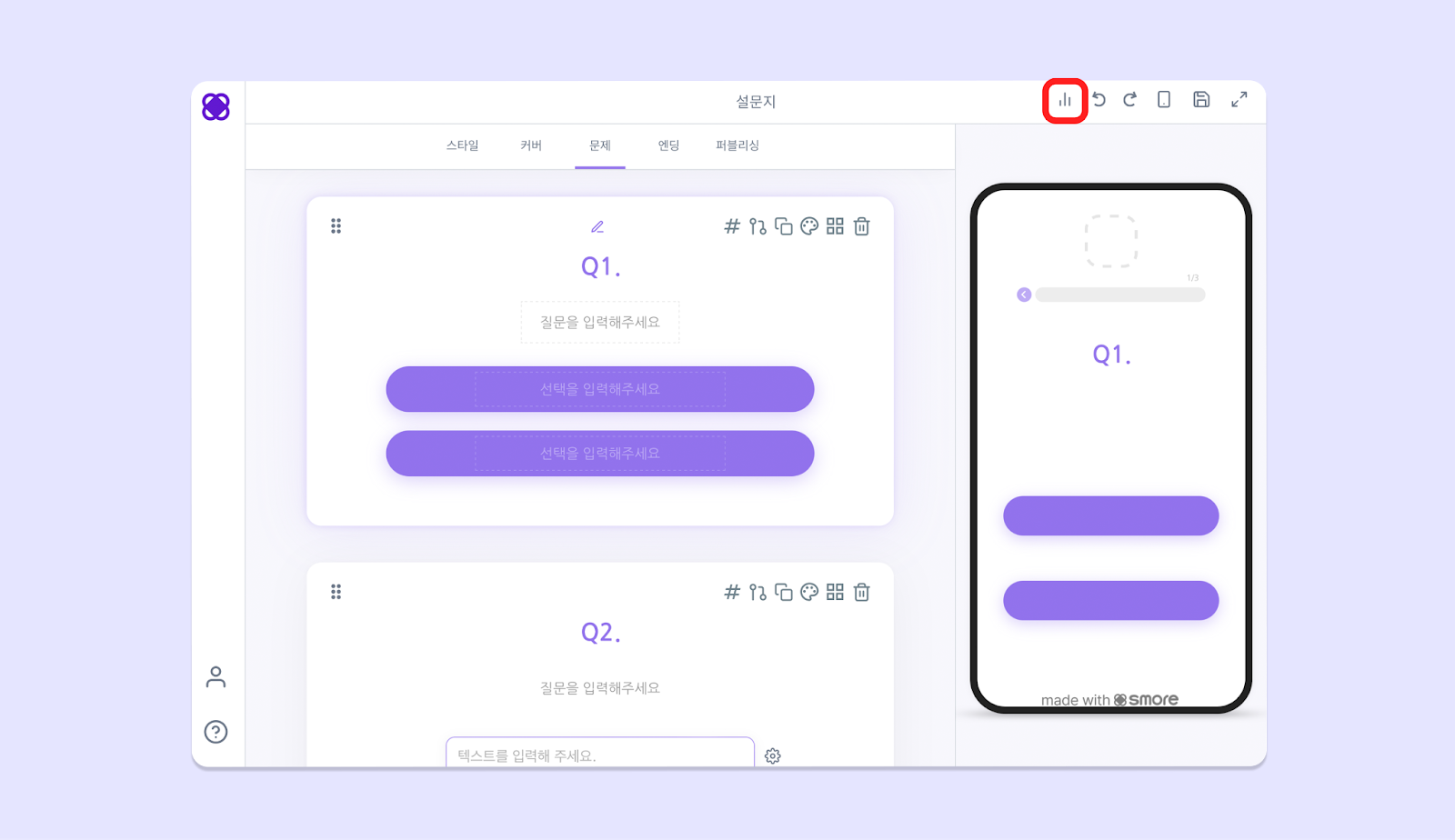
<img className="rounded-2xl" src="https://mintcdn.com/dodamind-705e6e3b/wQXKXg1OAEhnRJD2/analytics/images/image-1.png?fit=max&auto=format&n=wQXKXg1OAEhnRJD2&q=85&s=fe685e804f6ba9e60fcc3efc44c7d202" alt="image_2" width="1600" height="924" data-path="analytics/images/image-1.png" />

* 대시보드 좌측 하단 \[응답 및 분석] 클릭- 좌측에 확인하고 싶은 콘텐츠 선택
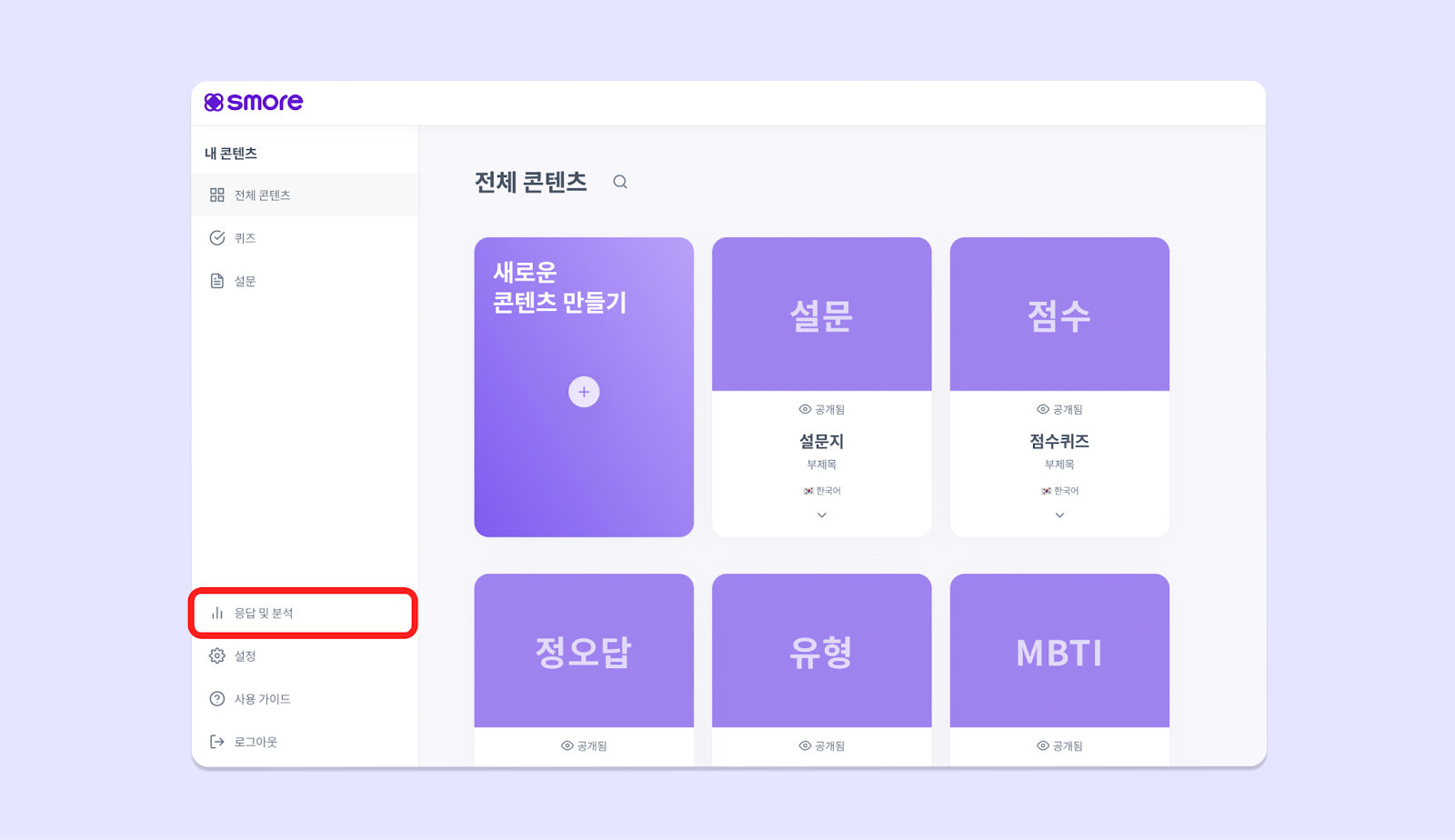
<img className="rounded-2xl" src="https://mintcdn.com/dodamind-705e6e3b/wQXKXg1OAEhnRJD2/analytics/images/image-2.png?fit=max&auto=format&n=wQXKXg1OAEhnRJD2&q=85&s=d4edcc8413eeb48725a6896d3074a6ac" alt="image_3" width="1600" height="924" data-path="analytics/images/image-2.png" />

* 대시보드에서 결과를 확인하고 싶은 **콘텐츠 하단 화살표** 클릭 후 ‘응답 및 분석’ 선택
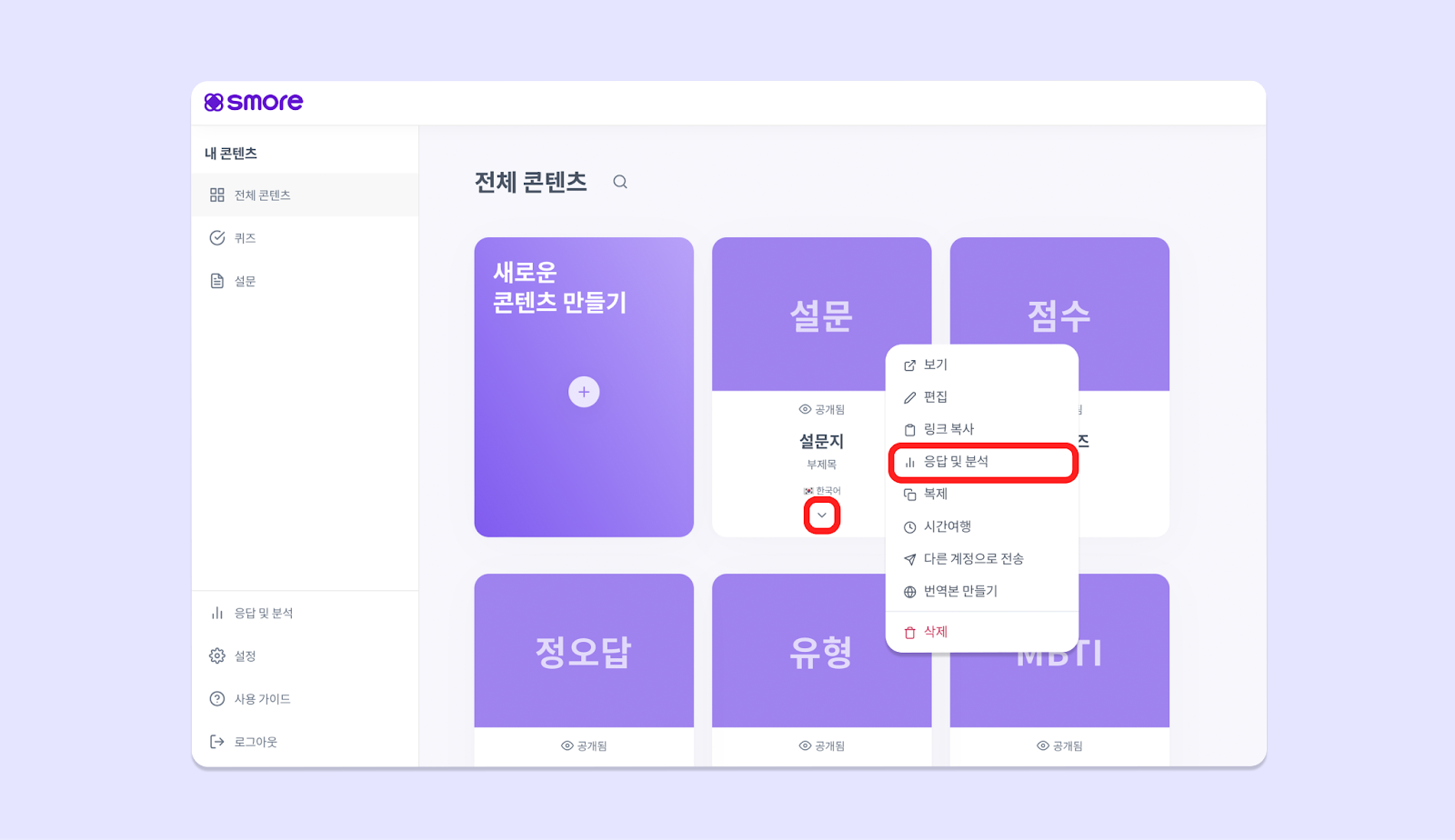
<img className="rounded-2xl" src="https://mintcdn.com/dodamind-705e6e3b/wQXKXg1OAEhnRJD2/analytics/images/image-3.png?fit=max&auto=format&n=wQXKXg1OAEhnRJD2&q=85&s=b9af73fbe8348218294086d654fb2394" alt="image_4" width="1600" height="924" data-path="analytics/images/image-3.png" />
